Posts

Showing posts with the label Windows

RDP End a Disconnected session
Image
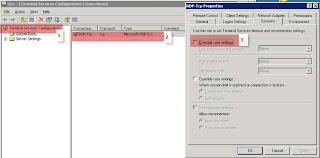
We all have had issues where in a RDP disconnected session wont allow other users to login until the administrator manually kills that disconnected session. Well, I just found out that there is a setting in Windows Server 2003 which would allow to automatically kill a RDP Disconnected session. Go to Start - Administrative Tools - Terminal Services Configuration. In Terminal Services Configuration, select Connections - RDP-Tcp. Right click RDP-Tcp and select properties. Go to sessions tab and select override user settings which is disabled by default. Here is a snapshot of the setting. Many thanks to Cameron Childress for this post titled How to Automatically Log Off Disconnected Remote Desktop / Terminal Services Sessions This article is also good.

Internet Explorer Terminal Services TS Remote Desktop Add On Prompted to enable but not in the list issue Windows XP SP3

Hi, One of our colleague got a new Dell Latitude laptop and when he was trying to remote desktop i.e. remotely login to his work pc, he was getting a message in Internet Explorer saying You need to enable the add-on or Active X control needs to be installed. Step 1. If the Active X control is not installed, please go ahead and install it. Step 2. If you are still not able to access remote desktop and get message saying enable the add-on, you would have to download XP SP3, extract the files and run the following 2 files Tscdsbl.bat Tscuinst.vbs That fixed the problem for me. Hope this helps.

Windows XP Utilities - Dual Monitor, Dual Taskbar, ClearType font.

If you like to be power user, then you will love these free utilities for Windows XP. The cleartype font utility makes the appearance of text crisp on your monitor. It can be downloaded for free from microsoft here http://www.mediachance.com/free/multimon.htm There is a another free utility which allows you to have 2 taskbar in Windows XP. The link for download is here http://www.mediachance.com/free/multimon.htm I am very happy with the use cleartype font utility. It changes the appearance of text 200%. No kidding about that. You could also have 2 different wallpapers on the monitors with this utility http://www.binaryfortress.com/displayfusion/ . I have not tried this one, just to let you know ;-). Good Luck.

Webex file extension .wrf will not open or rendered by IIS web server

We recently moved our web application to new server and we noticed that the webex files with extension .wrf was not being shown to user or was not being rendered by IIS. So on doing further research, I came to know that we needed to set a MIME type for the wrf extension. The .wrf extension needs to be set to application/octet-stream. Go to IIS settings, select the website or the web root folder and right click and select properties. Click on HTTP Headers tab and the bottom click on MIME Types button. Click new button and add .wrf in extension and application/octet-stream in MIME Type text box. Click OK and Apply at next screen and you should be done. After I clicked OK and Apply, the screen Inheritance override was shown. I said cancel to all. Here is some info from IIS help. If you set or change a MIME type that conflicts with a setting at another node in the hierarchy, you are prompted with an Inheritance Override dialog box where you can specify the nodes to which the new setting a...

Windows Drive Letter Issues with USB Drive. USB drive not shown in My Computer

One of the very common problems faced by users is that if you use more than one usb drive, then chances are one of them might not be listed when you open MY Computer. To solve this issue, Right click My Computer, Select Manage, and Under Storage, Select Disk Management. Now from here you can change the Drive Letter and assign a new one or just go to Address bar of Windows explorer and type in the drive letter shown next to the USB Drive which is not listed in My Computer. In my case, I had F: drive assigned for USB and then I attached external hard drive which took the F: drive letter making my USB drive not listed in My computer. I did steps mentioned above and found that infact its using G: as drive letter. Type G: in windows explorer and I could view the files on my USB drive. I hope it helps someone.